

Michael P.
«Got it before a trip abroad — all my home country services work as usual. Saved me a lot of headaches.»
A personal VPN for Windows on your own server: a dedicated IP, a choice of 60+ locations and the native MeduzaVPN app for Windows.
MeduzaVPN turns your Windows computer into a private gateway to the internet through a personal VPS in the location you choose. Your traffic goes through your own server and your own IP, not a shared address like most mass-market VPNs.
The native MeduzaVPN app for Windows gets you online in a couple of clicks: install it, sign in, pick a server and connect — just like the apps for Android, iOS and macOS. A dedicated server just for you means a stable connection and full control. If you prefer, you can still import a config file from your account into a third-party client such as WireGuard or OpenVPN, with step-by-step instructions in your account.

Create a MeduzaVPN account and choose a VPN location from 30+ countries.
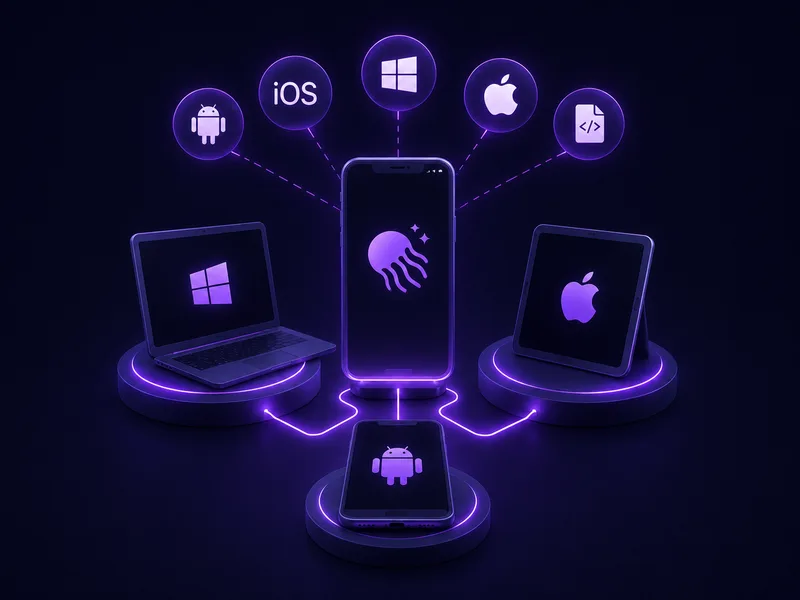
Install the MeduzaVPN app for Windows, Android, iPhone, iPad and Mac and sign in to your account — or use the configuration file in any third-party client.

Now all your device's traffic goes through your own server — with a dedicated IP, no shared users and no limits.
Get the MeduzaVPN app
Your own VPS and modern encryption — your traffic stays separate from others.
Modern protocols help you stay connected even in the toughest network conditions.
More than thirty countries and regions — pick where your server runs.
Get configuration files and QR codes to connect through any compatible VPN client.
Changed your mind — full refund within the first 15 days.
Every VPN in your subscription is a personal server that nobody shares with you. One subscription can hold from 1 to 20 of them, each in its own location.
15-day money-back guarantee
Full refund on requests made within 15 days with a reason provided
60+ locations included
Switch location anytime at no extra cost
Multiple payment methods
14 ways to pay: international and Russian cards, SBP, SberPay, T-Bank, YooMoney, MIR Pay, UnionPay, Apple Pay, Google Pay, Samsung Pay, PayPal, stablecoins and 50+ other coins
Michael P.
«Got it before a trip abroad — all my home country services work as usual. Saved me a lot of headaches.»
Irene L.
«Took it on trial after a bad experience with another service. Everything works the way it should: stable connection, decent speed even in the evening, and payment went through without any hassle. I used to be skeptical about services like this, but now I recommend it to friends without hesitation. I'll be staying for the long run.»
Daniel W.
«Fair price, no issues with speed, plenty of servers for any task. One minor wish — I'd love more detailed connection and traffic stats in the app. It would also be nice to get push notifications when the connection drops. Doesn't affect the core functionality, overall happy and not planning to switch.»
Olivia S.
«Got it for my mom — she's always worried about scammers. The service has its own app, so there was nothing to configure manually: installed it, signed in, and it just works.»
Artem K.
«Got connected in a couple of minutes, no complex setup. Stable both at home and while traveling, speed is consistently high across every device.»
Elena M.
«Works on all my devices right away: laptop, phone, tablet. No extra hassle.»
Create a MeduzaVPN account, download the Windows app from your account and run the installer. Then sign in, choose a VPN location and connect in a couple of clicks — step-by-step instructions are in your account.
No. MeduzaVPN has its own native app for Windows, so you install it, sign in and connect — there is nothing else to buy. If you prefer, you can still import a config file into a third-party client such as WireGuard or OpenVPN, but that is optional.
Yes. The MeduzaVPN app runs on current versions of Windows 10 and Windows 11: install it, sign in and choose a server to connect.
The app uses modern protocols and lets you switch between them, so you can keep a stable connection even in the most demanding network conditions. You can also change VPN location at any time from inside the app.
No. The app runs locally without sending your activity anywhere, and on the server each protocol runs in an isolated container with no internal logs on your personal VPS.